
Streamers and Hi-Fi
Qobuz on Bluesound NODE
Use BluOS Controller to select your NODE and add the service under Music Services.
Add Qobuz to Bluesound NODE
The phone or computer and NODE must be on the same home network. Update BluOS and the NODE before signing in.
- 1
Open Music Services in BluOS
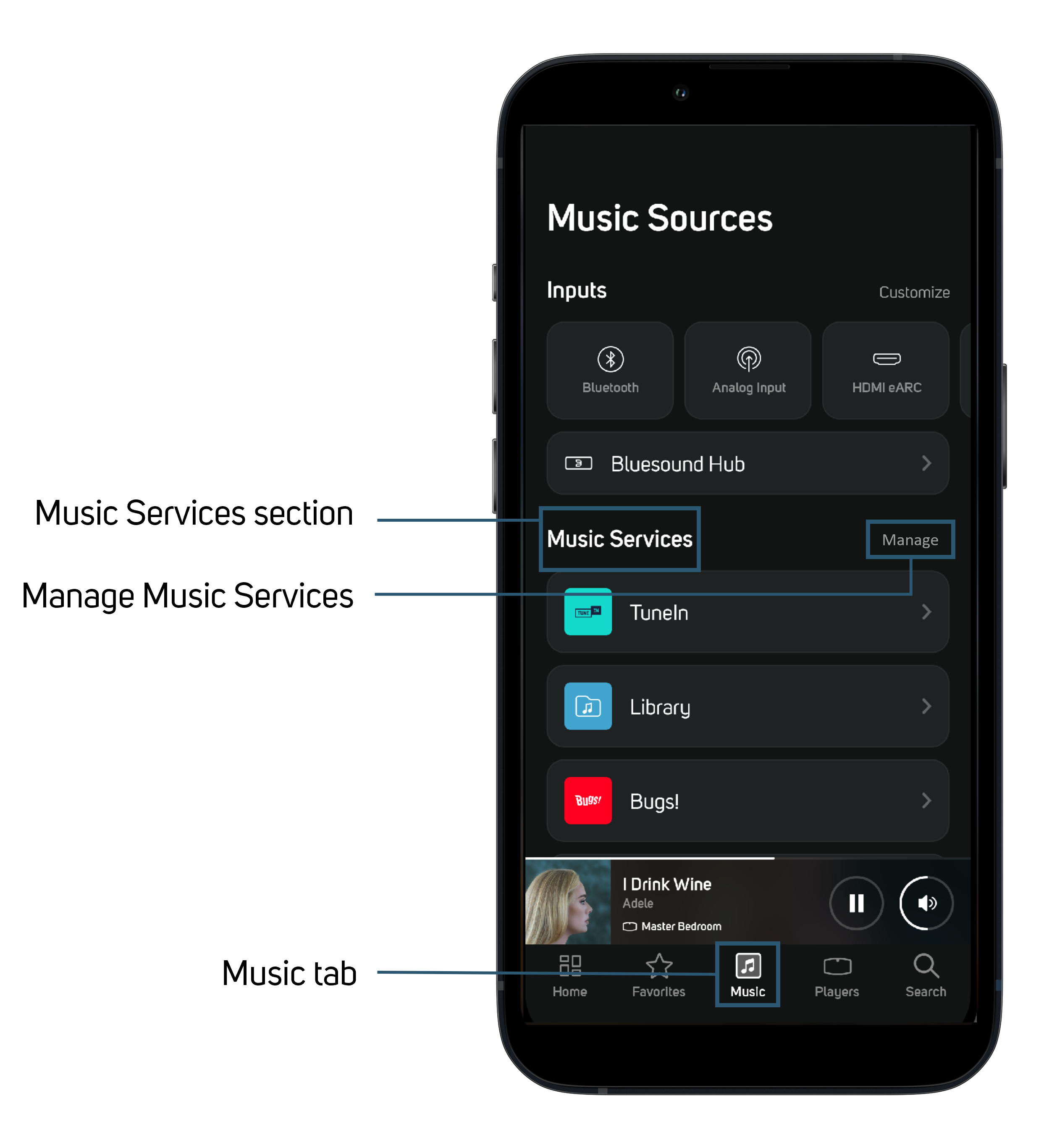
Open BluOS Controller, select your NODE in Players, then tap Music. Under Music Services, tap Manage.
Download BluOS Controller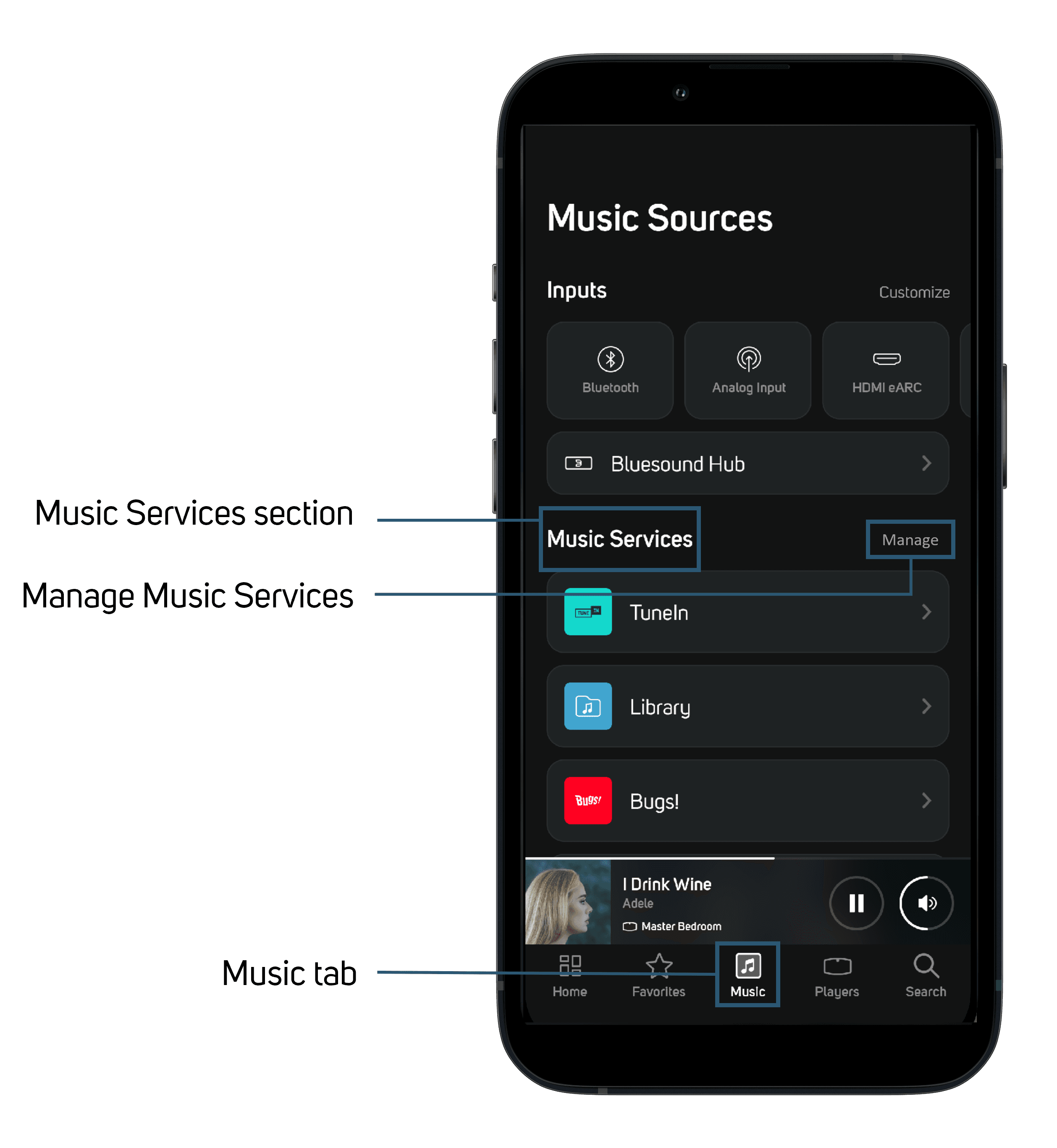
On a phone, tap Music at the bottom and Manage beside Music Services.Screenshot: Bluesound Support - 2
Choose Qobuz and sign in
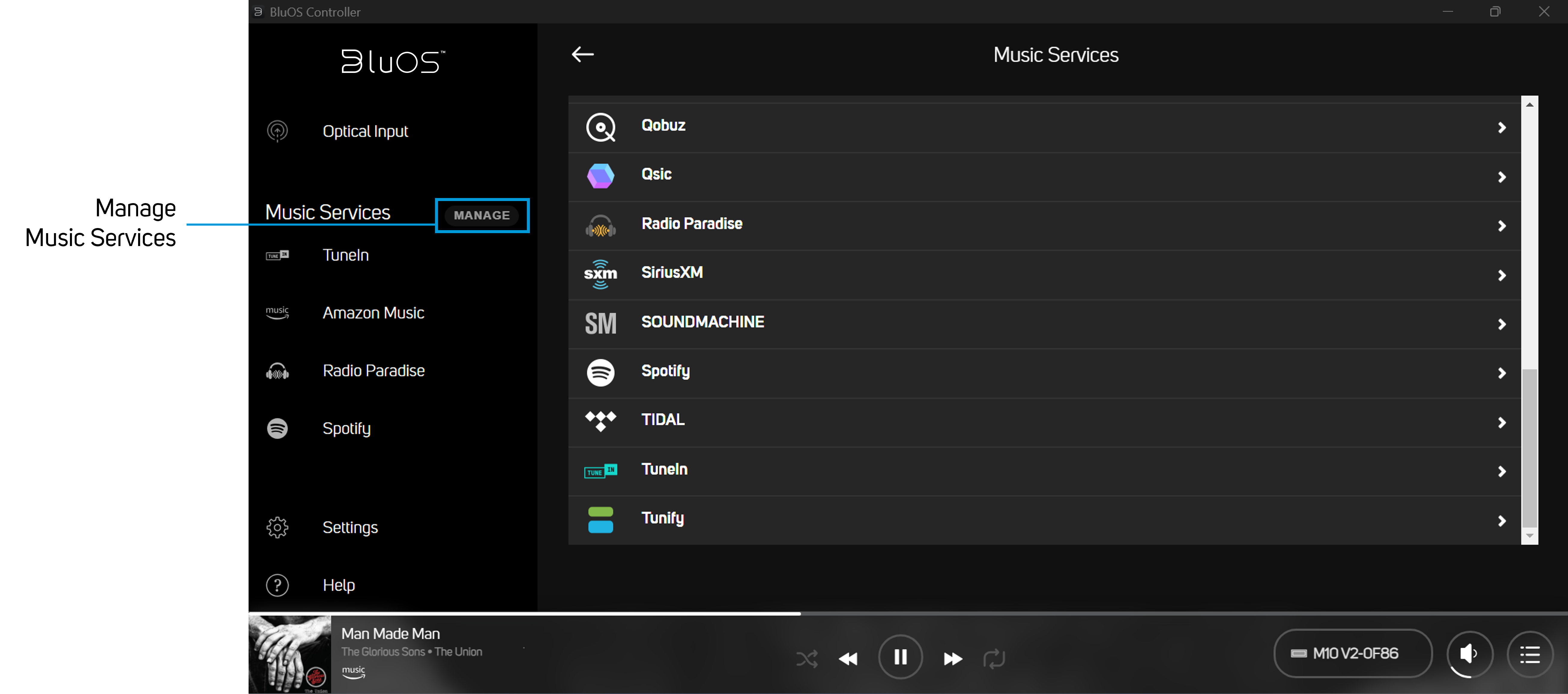
Tap Qobuz in the services list, then enter the Qobuz email and password from your AudiophileStream dashboard. When sign-in finishes, Qobuz appears under Music Services; open it and play a track.
Open your AudiophileStream account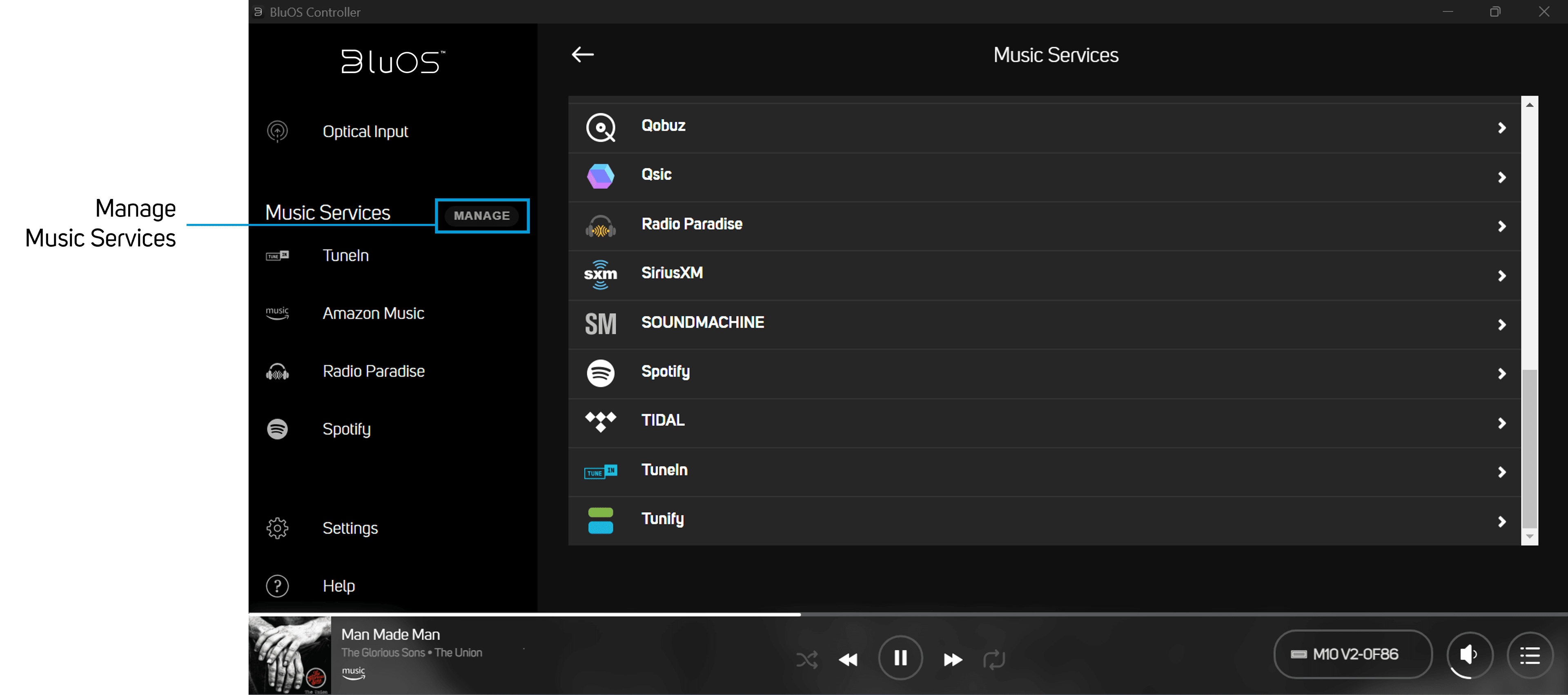
Select Qobuz from Music Services. This official computer view shows both Qobuz and TIDAL in the list.Screenshot: Bluesound Support
If the NODE or service is missing
- 1
Confirm that the NODE and controller are on the same router and that the NODE appears in the Players tab.
- 2
If Qobuz is absent, update BluOS Controller and the NODE firmware, then reopen Manage under Music Services.
- 3
If sign-in fails, remove the incomplete service login, turn off VPN on the controller, and enter the credentials again.
Downloads and official help
Open the exact resources referenced in this guide.