
Streamers and Hi-Fi
Qobuz on LUMIN
Select your LUMIN player, connect the service in Settings, and start playback.
Connect Qobuz in the LUMIN app
Connect the phone or tablet and LUMIN player to the same home network. Select the player name at the top of the LUMIN app before continuing.
- 1
Tap the Qobuz tab
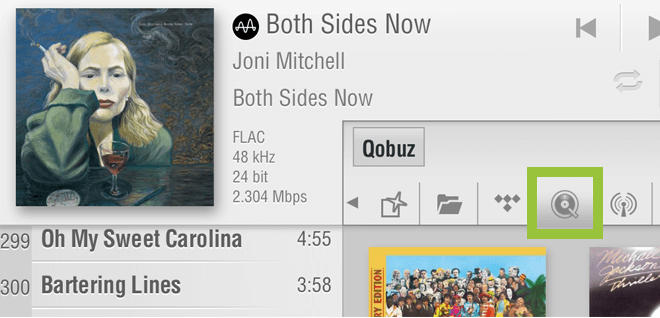
In the LUMIN app, tap the Qobuz tab in the browse panel. The first time you open it, LUMIN asks you to sign in.
Open the official Qobuz guide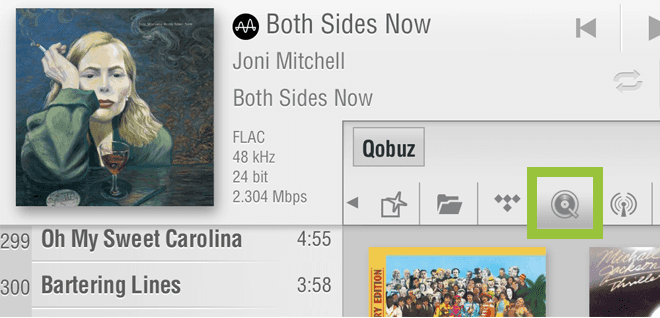
Tap the Qobuz tab shown in this official LUMIN manual screenshot.Screenshot: LUMIN Qobuz streaming manual - 2
Sign in to Qobuz
Enter the Qobuz email and password from your AudiophileStream dashboard. If you need to reopen this login later, go to Settings, LUMIN Player Options, then Qobuz Setting.
Open your AudiophileStream account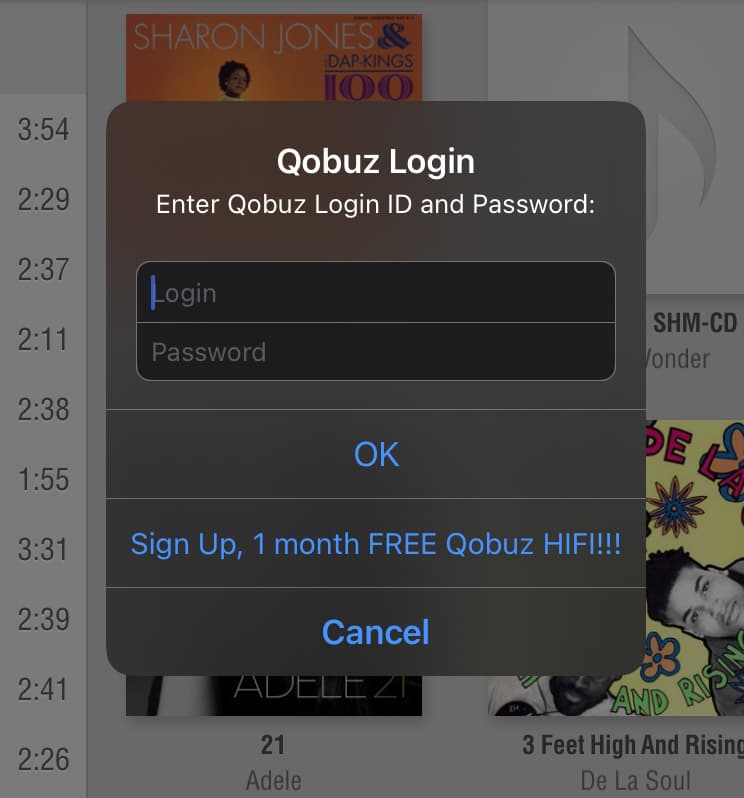
Enter the supplied Qobuz login in this dialog. Do not choose Sign Up.Screenshot: LUMIN Qobuz streaming manual - 3
Browse Qobuz and play
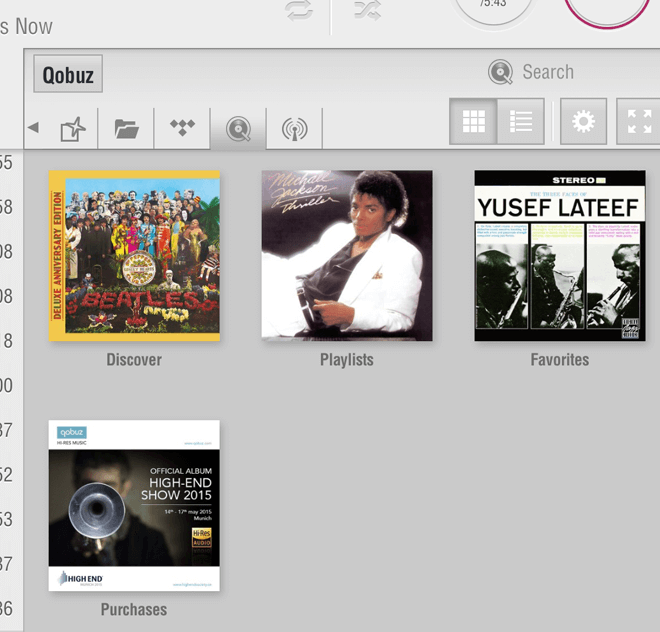
After sign-in, the Qobuz browse panel shows its recommendations, playlists, and saved music. Choose an album or track and tap Play.
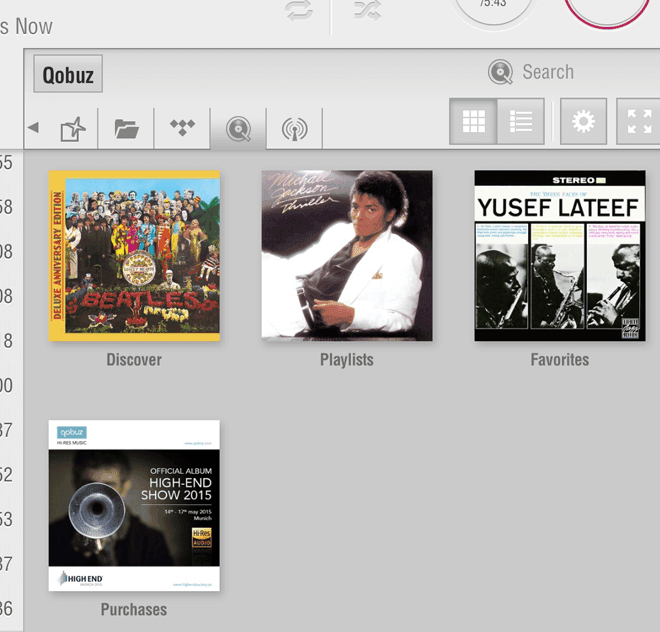
This is the Qobuz browse screen shown in LUMIN's official Qobuz manual.Screenshot: LUMIN Qobuz streaming manual

If the LUMIN player or service is missing
- 1
Confirm that the controller and LUMIN player are on the same home network and that the player name is selected at the top of the app.
- 2
Update the LUMIN app and player firmware if Qobuz Setting is not present.
- 3
If sign-in fails, turn off VPN on the controller and enter the supplied account details again.
Downloads and official help
Open the exact resources referenced in this guide.