
Streamers and Hi-Fi
Qobuz on Roon
Connect the service in Roon, enable your audio device, and choose its playback zone.
Connect Qobuz and choose where music plays
This guide assumes that Roon Server is already running and that this device can control it.
- 1
Sign in to Qobuz under Services
In Roon, open Settings, choose Services, and click Login beside Qobuz. Enter the Qobuz credentials from your AudiophileStream dashboard and finish the sign-in.
Open your AudiophileStream account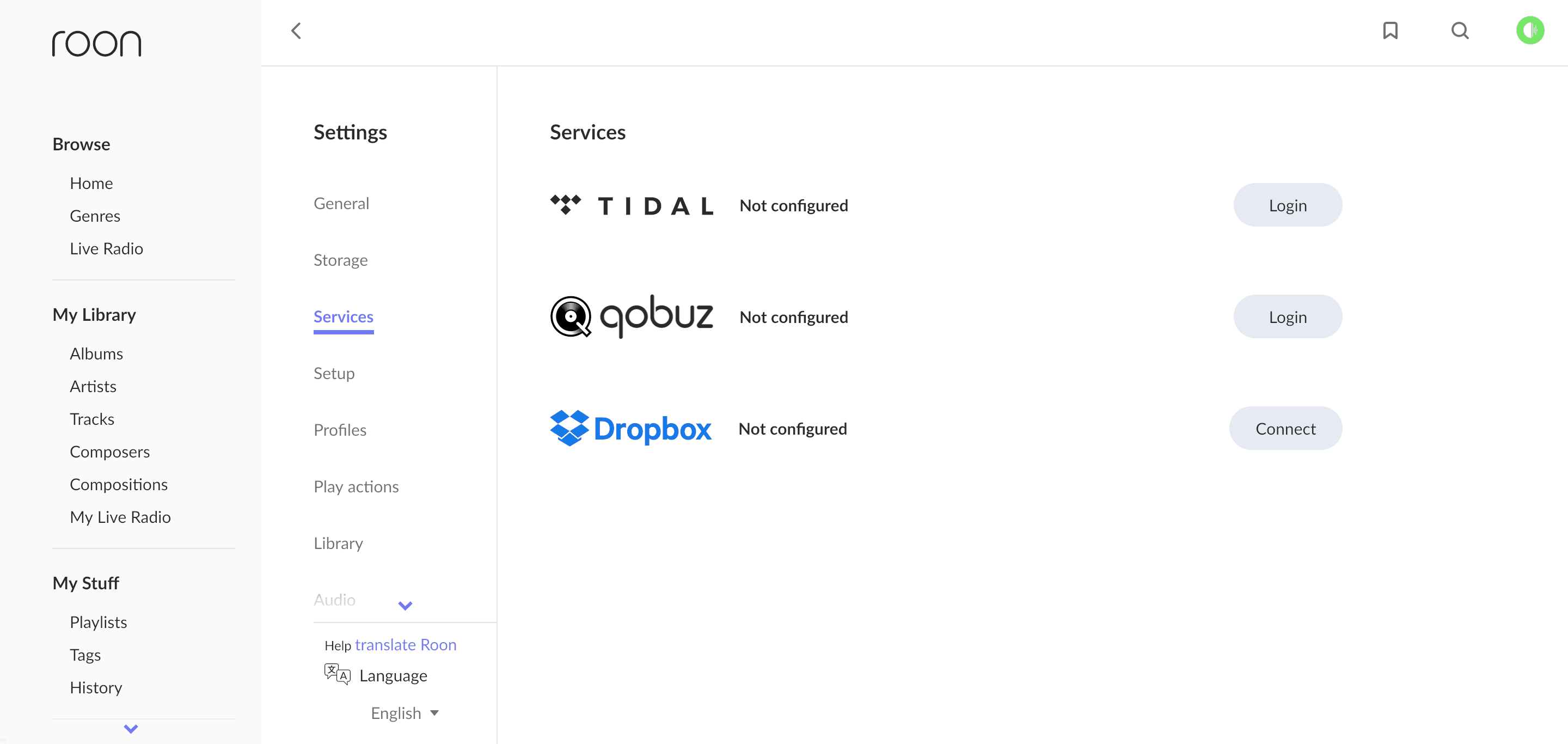
Click Login beside Qobuz. Both supported services are shown on this official Roon screen.Screenshot: Roon Qobuz setup - 2
Enable your audio device
Open Settings, then Audio. Find the streamer, receiver, DAC, or computer output you want to use and click Enable. Give it a simple room name when Roon asks.
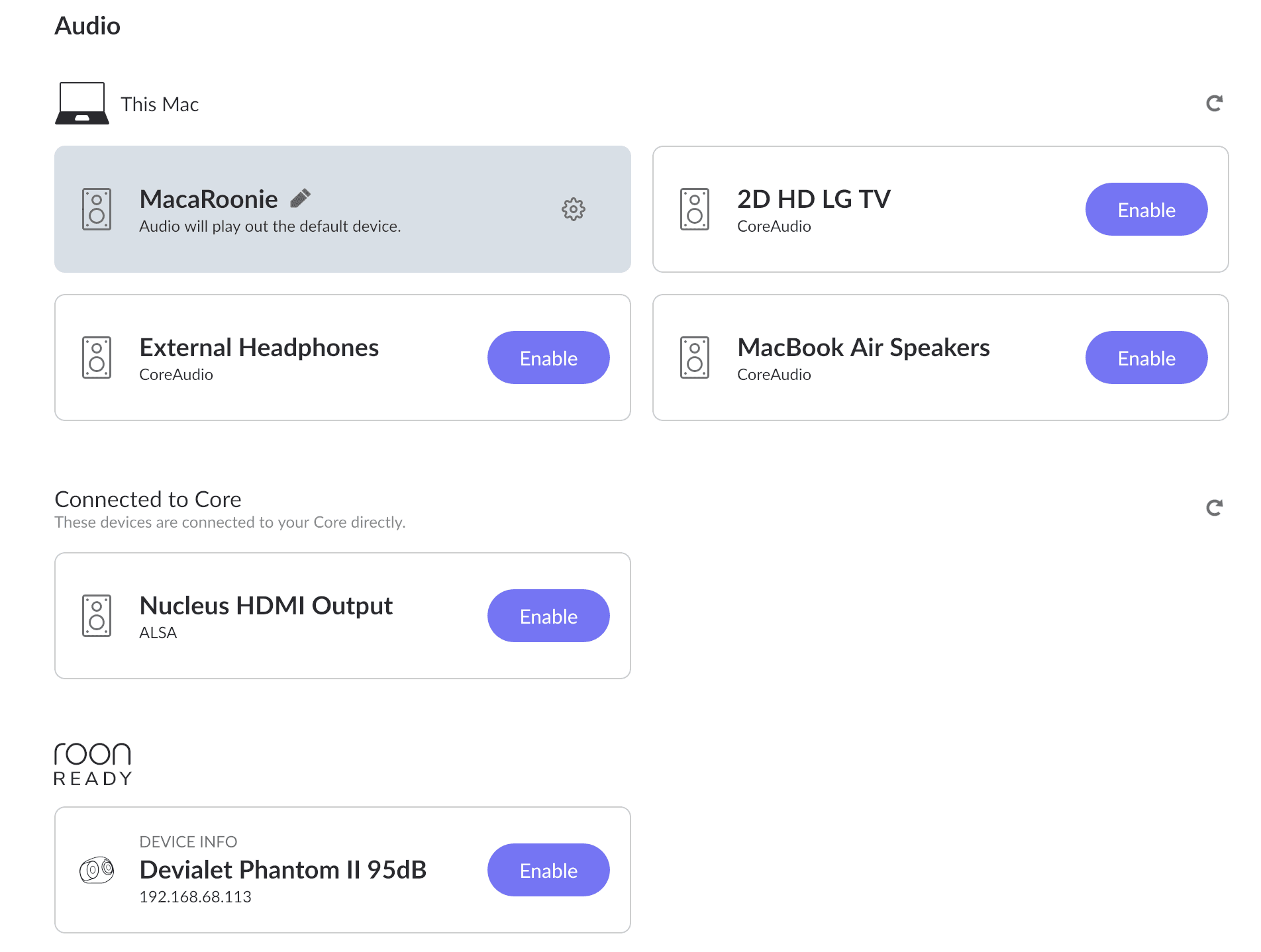
Click Enable on the exact output you want. An enabled output becomes a Roon zone.Screenshot: Roon Audio Setup Basics - 3
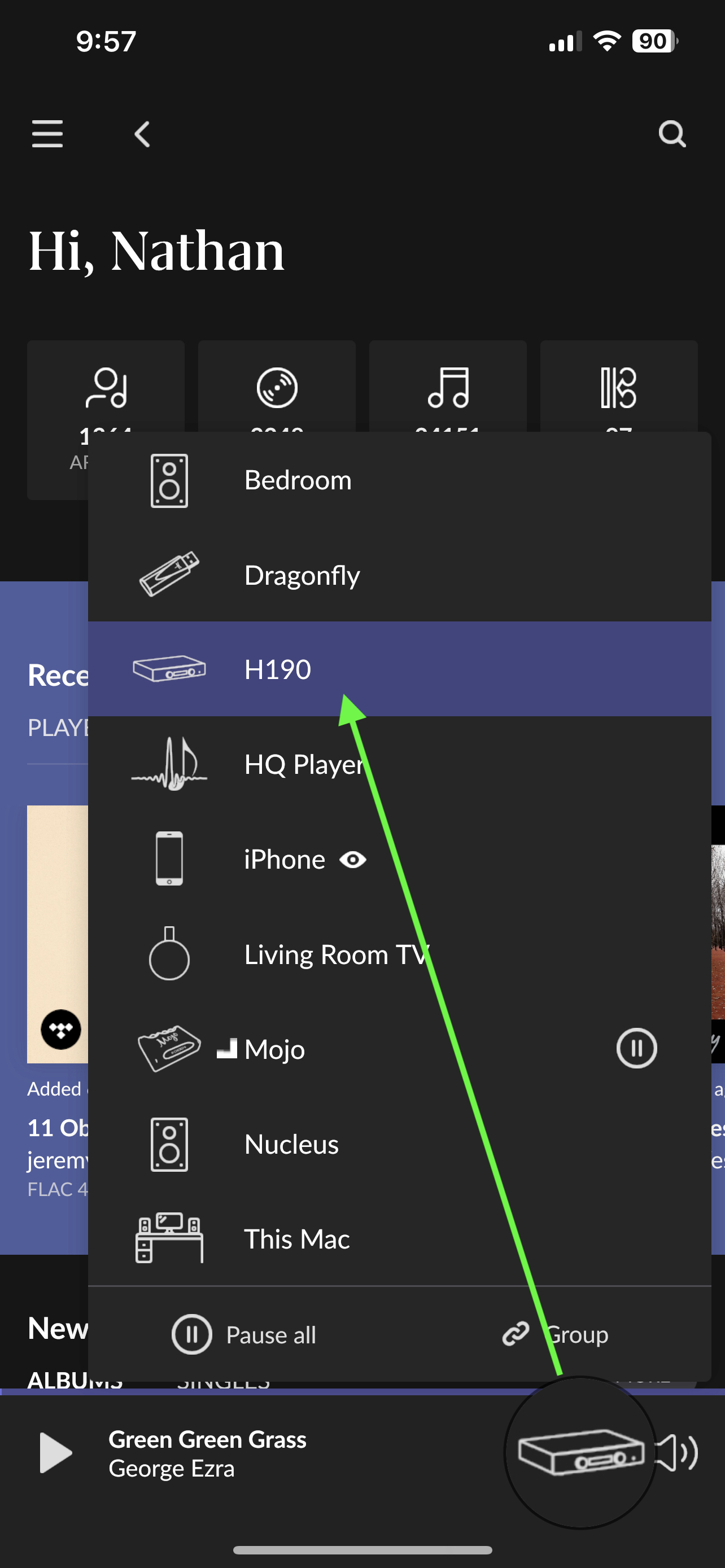
Choose the zone and play
Open the zone picker at the bottom of Roon, choose the room or device you just enabled, then search Qobuz and play a track. The selected zone stays visible in the player bar.
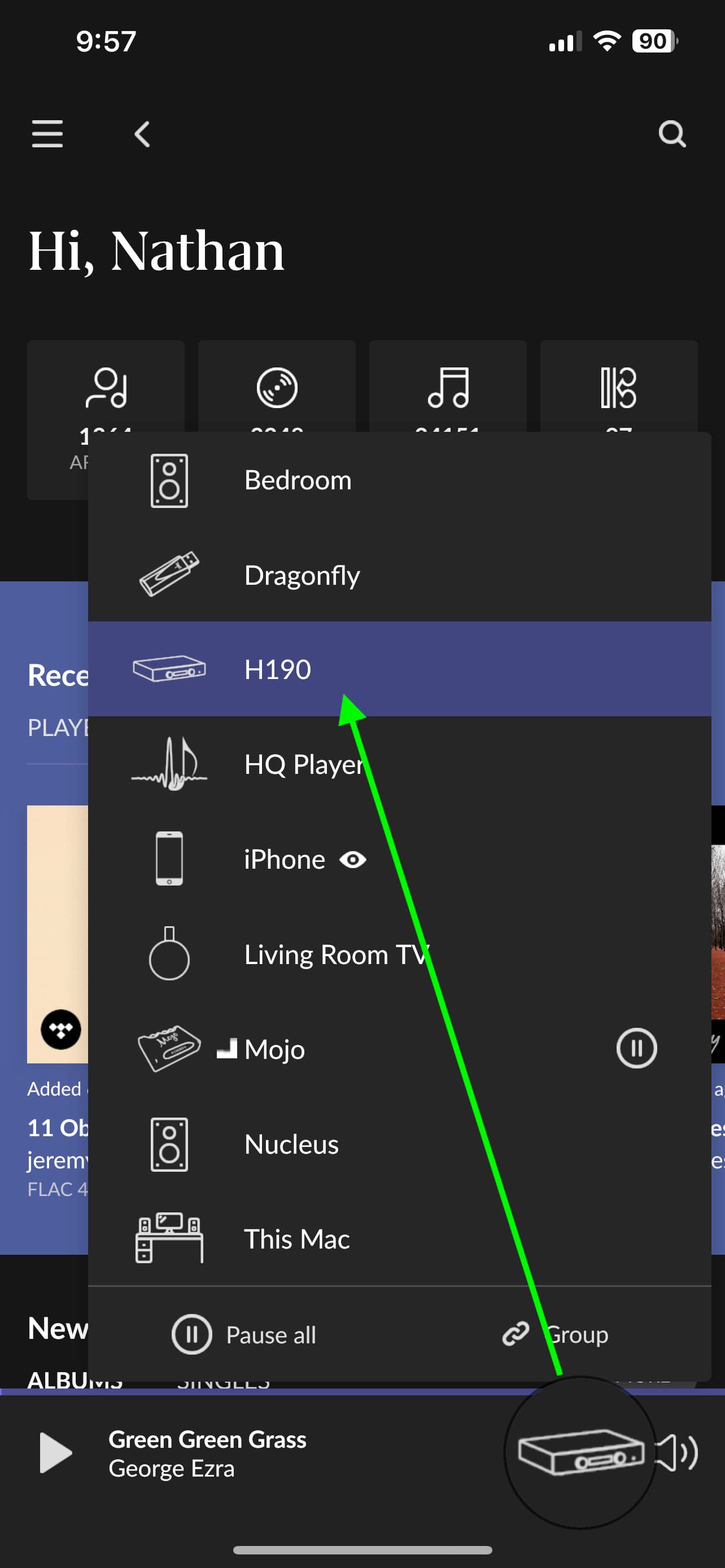
Open the zone picker in the player bar and tap the device or room that should play.Screenshot: Roon Zone guide

If the audio device is missing
- 1
Confirm that Roon Server, the controller, and the network streamer are connected to the same home network.
- 2
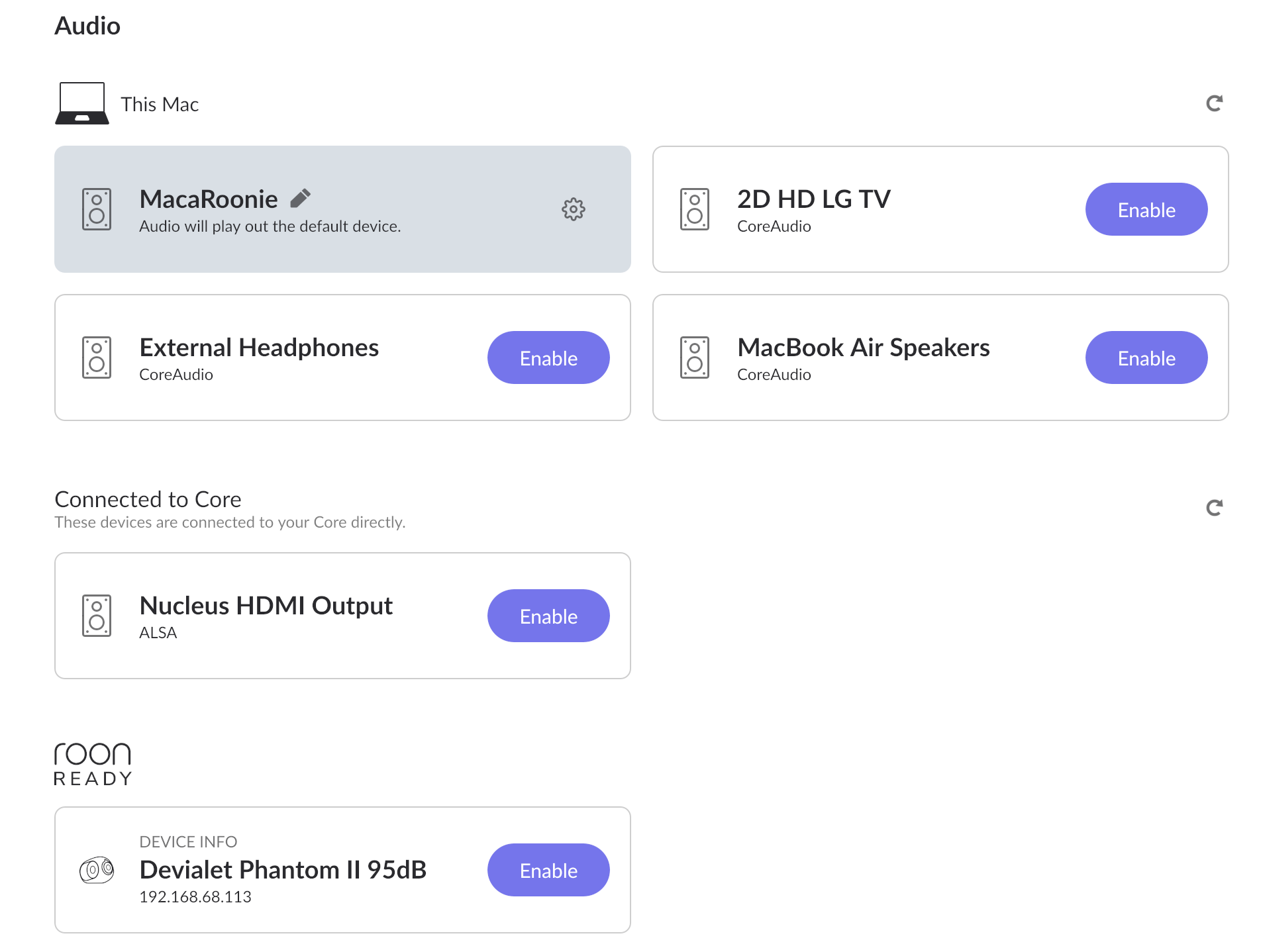
Return to Settings, Audio and use the refresh button. Restart the endpoint if it still does not appear.
- 3
If Qobuz content is missing, return to Settings, Services and confirm that Qobuz shows as signed in.
Downloads and official help
Open the exact resources referenced in this guide.