
Streamers and Hi-Fi
Qobuz on Sonos
Add the service from Content Services in the Sonos app, then choose a room and play.
Add Qobuz to Sonos
Connect the phone and Sonos system to the same home network, then open the Sonos app.
- 1
Open Content Services
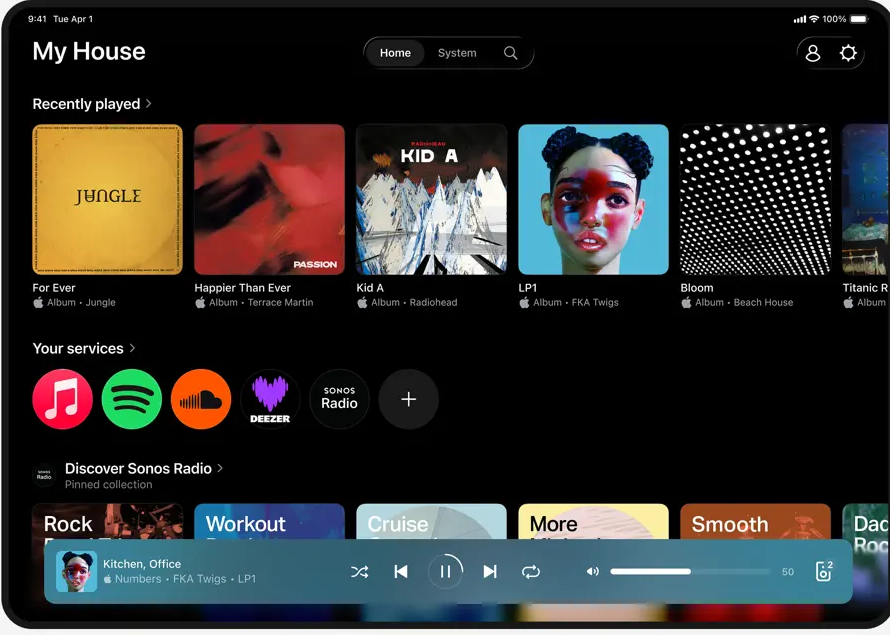
From Home, tap the account icon at the top-right, then open Content Services. Under Your Services, tap Add Content Service.
Open the official Sonos instructions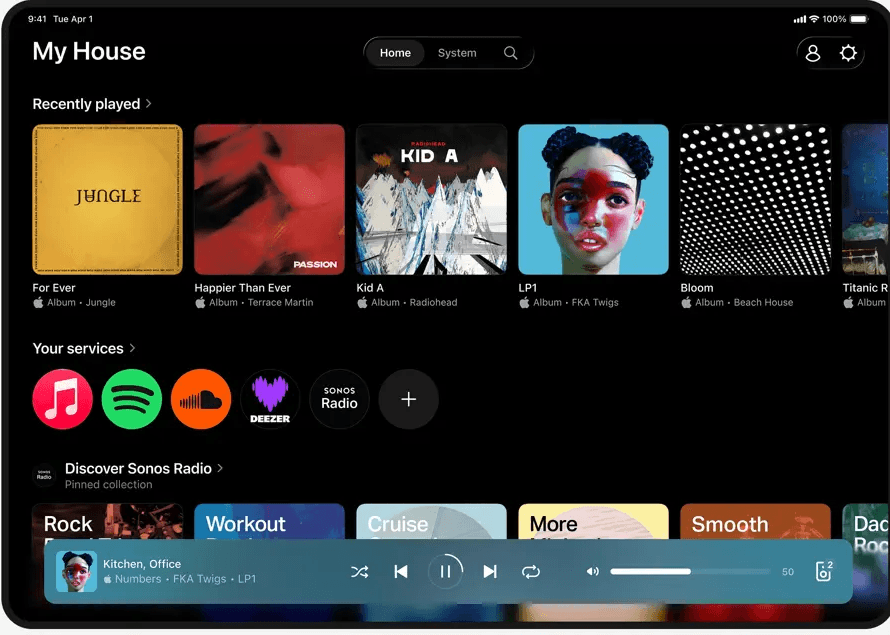
Use the account icon at the top-right, then open Content Services. Your connected services also appear on Home.Screenshot: Sonos App Store listing - 2
Choose Qobuz and authorize it
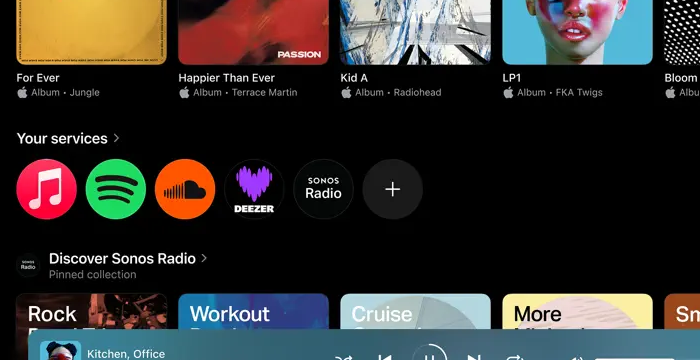
Tap Add Content Service, select Qobuz, then tap Add to Sonos. Sign in with the Qobuz details from your AudiophileStream dashboard and choose a Sonos room when you play.
Open your AudiophileStream account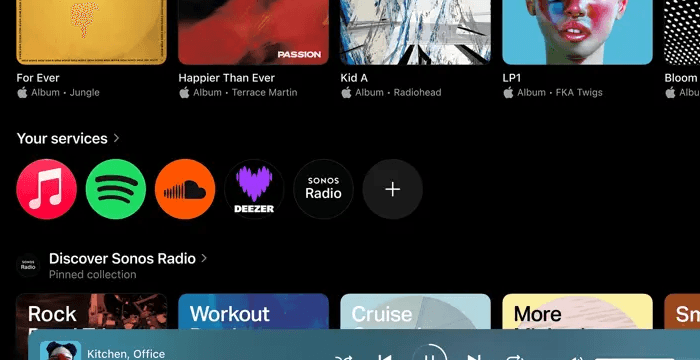
Tap the plus button beside Your services, then choose Qobuz from the service list.Screenshot: Sonos App Store listing
If the service or room is missing
- 1
Search the full Add Content Service list. Qobuz availability can depend on the country configured for the Sonos account.
- 2
Confirm that the phone is on the same home network as Sonos and that the intended room appears under Your System.
- 3
Remove an incomplete service login and add it again with VPN disabled if authorization does not finish.
Downloads and official help
Open the exact resources referenced in this guide.