
Streamers and Hi-Fi
TIDAL on Cambridge Audio
Use StreamMagic to update your Cambridge player and open the service from Library.
Open TIDAL in StreamMagic
Connect the phone and Cambridge player to the same home network before opening StreamMagic.
- 1
Select and update the Cambridge player
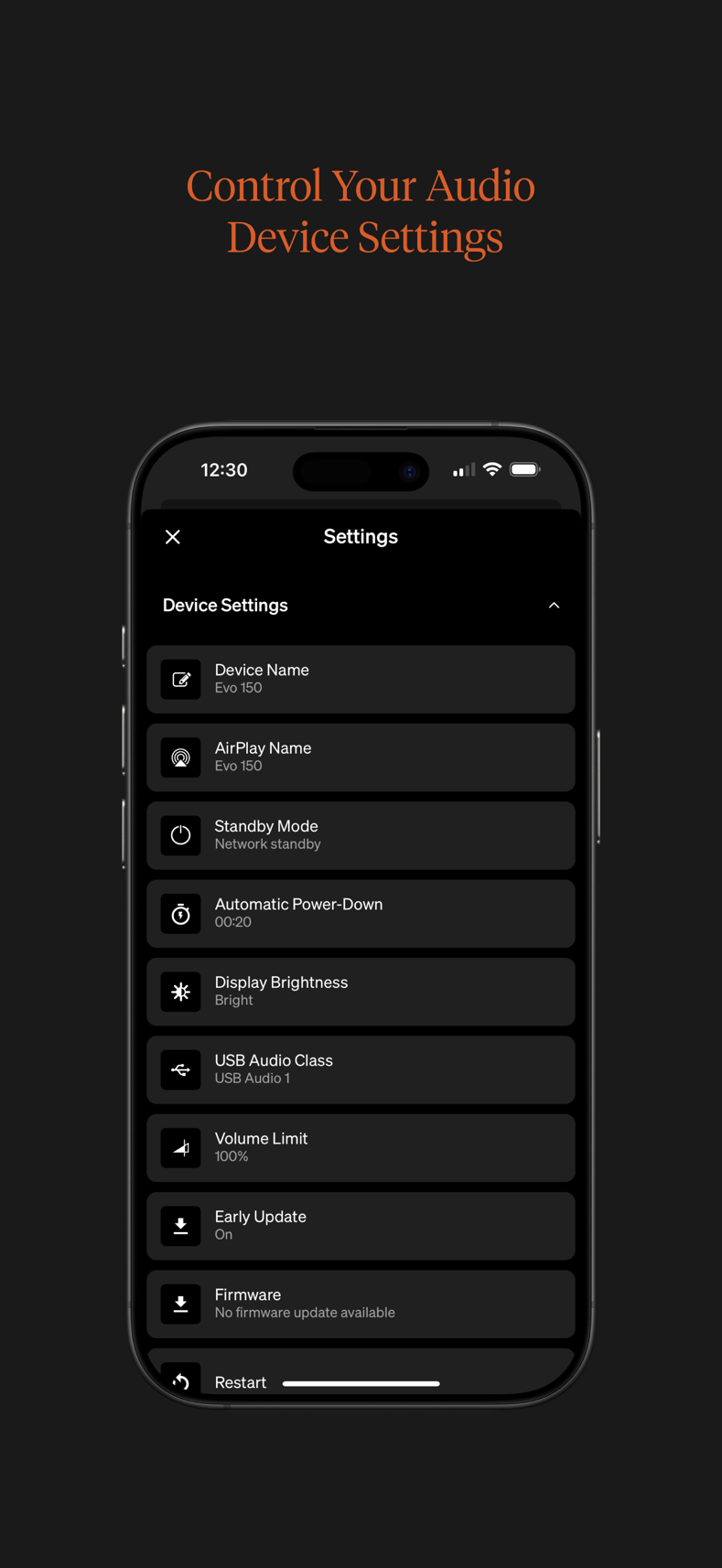
Open StreamMagic and select your Cambridge network player. Open its settings and install any available firmware update before adding a music service.
Open the StreamMagic page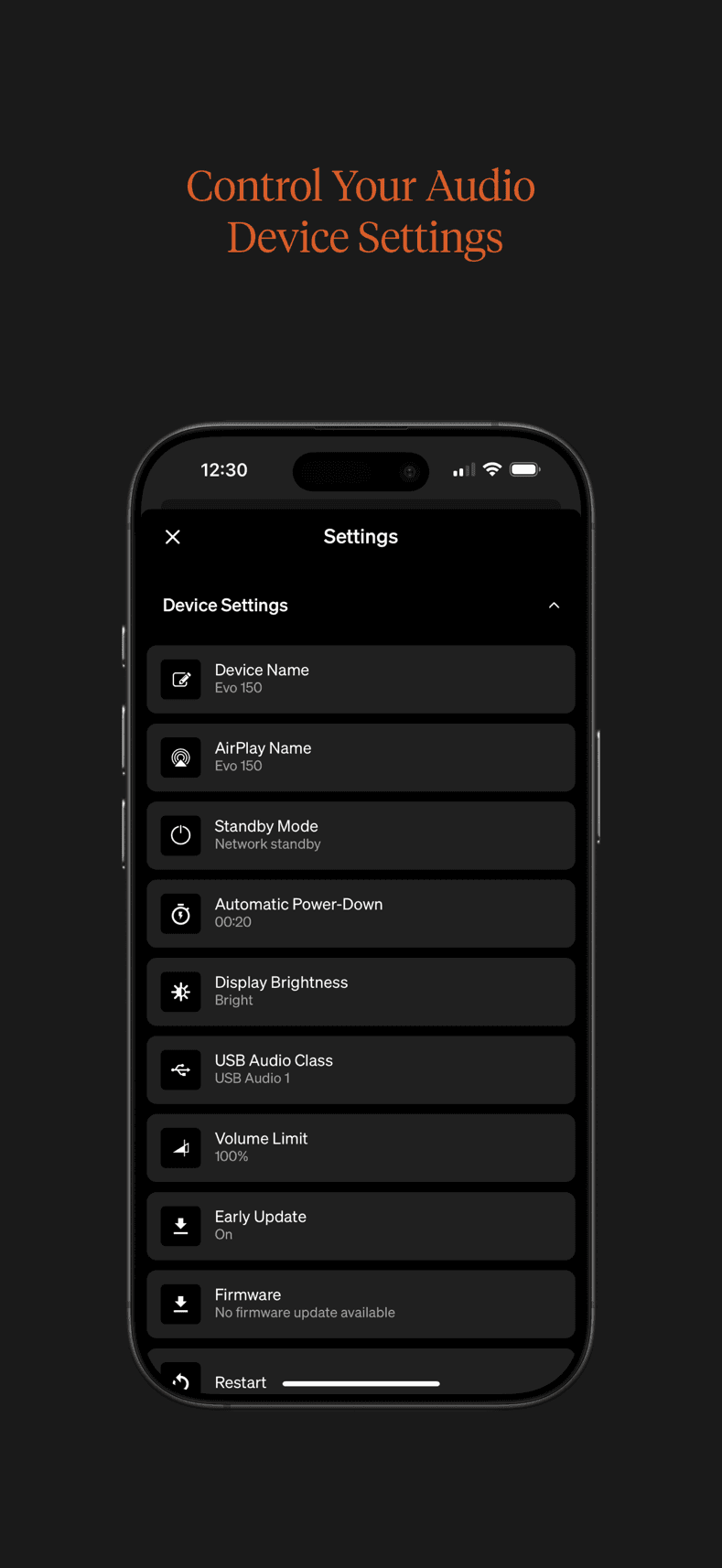
In the selected player's settings, check that Firmware does not show an available update.Screenshot: StreamMagic App Store listing - 2
Open Library and choose TIDAL
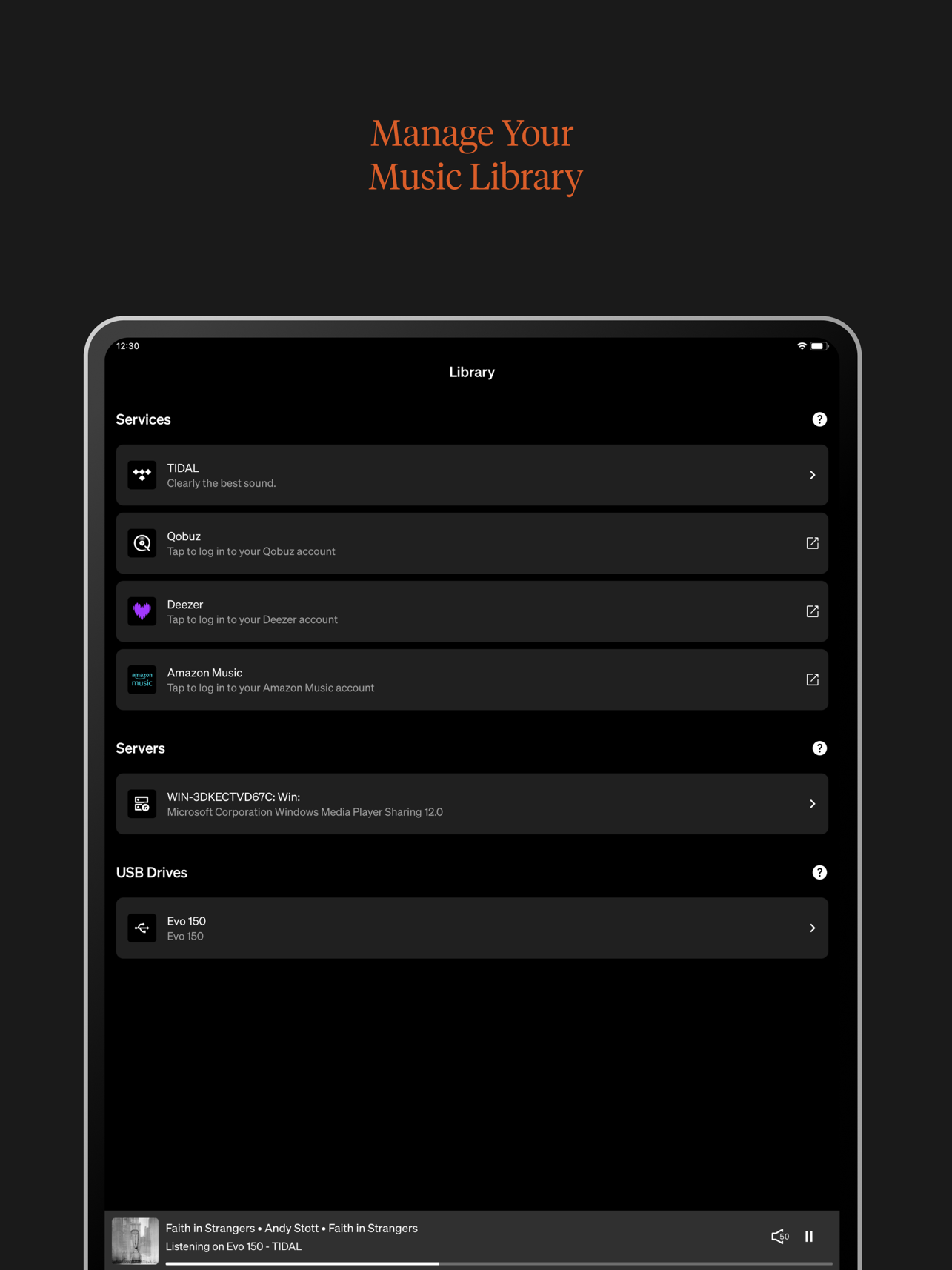
Tap Library, then tap TIDAL under Services. Sign in with the credentials from your AudiophileStream dashboard. After sign-in, browse TIDAL, choose a track, and tap Play.
Open your AudiophileStream account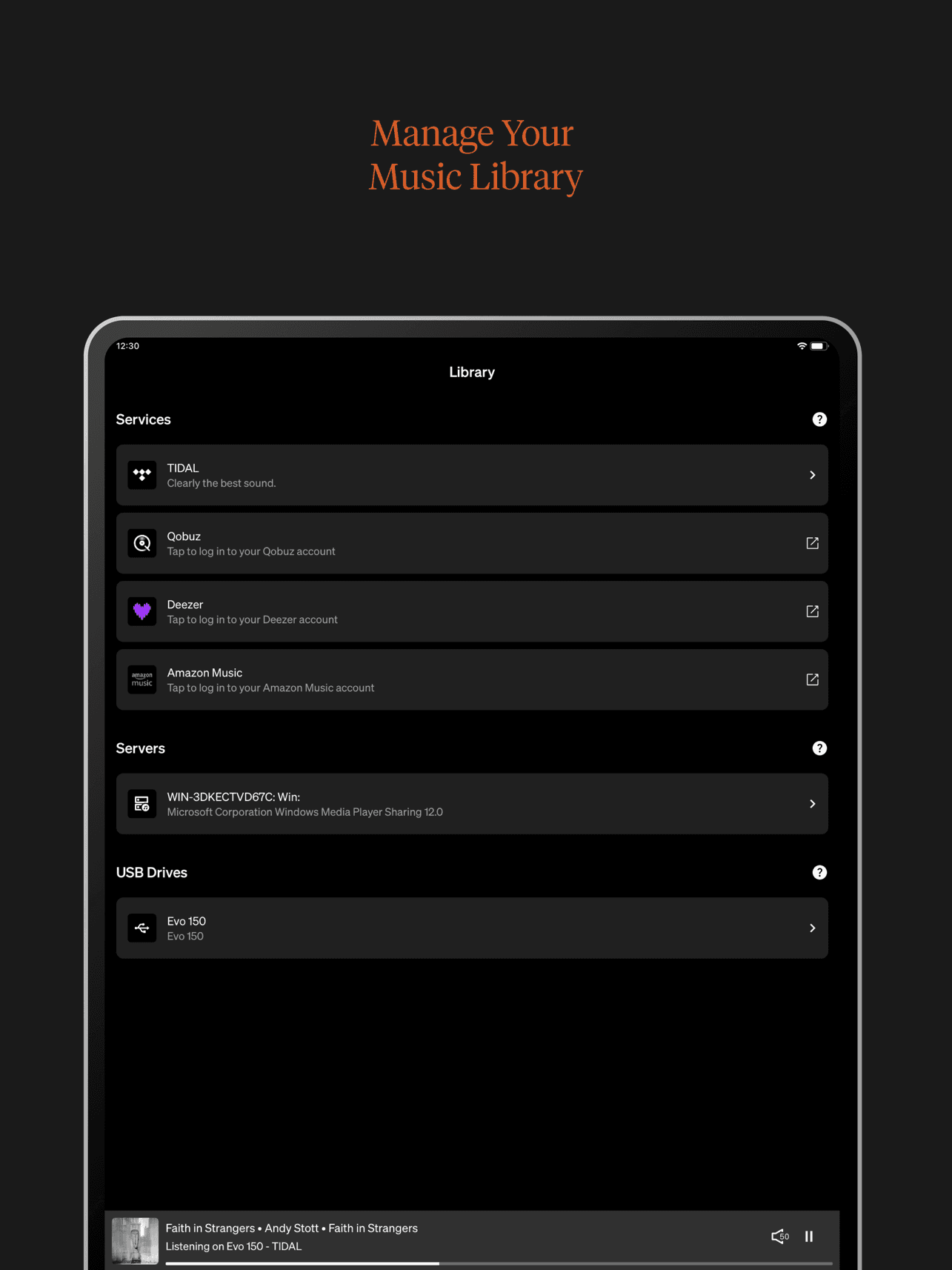
Both TIDAL and Qobuz are opened from the Services list in StreamMagic Library. Tap TIDAL.Screenshot: StreamMagic App Store listing
If the player does not appear
- 1
Check that the Cambridge player is powered on and connected to the same router as the phone. Guest Wi-Fi can prevent discovery.
- 2
Close and reopen StreamMagic, then restart the player and router if it is still missing.
- 3
If TIDAL is not listed under Services, update StreamMagic and the player's firmware before trying again.
Downloads and official help
Open the exact resources referenced in this guide.