
Streamers and Hi-Fi
TIDAL on Eversolo
Open Music Services in Eversolo Control, sign in, and play through your Eversolo streamer.
Add TIDAL in Eversolo Control
Connect the phone and Eversolo streamer to the same home network, then select the streamer in Eversolo Control.
- 1
Open Music Services and choose TIDAL
In Eversolo Control, open Streaming, then Music Services. Tap TIDAL and choose Sign in.
Open the Eversolo Control page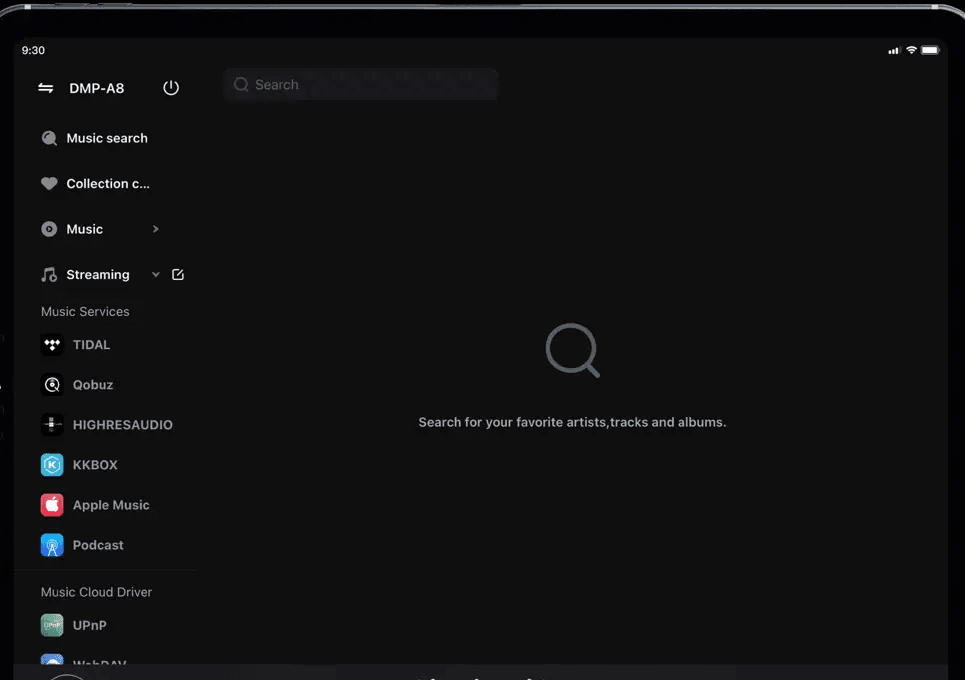
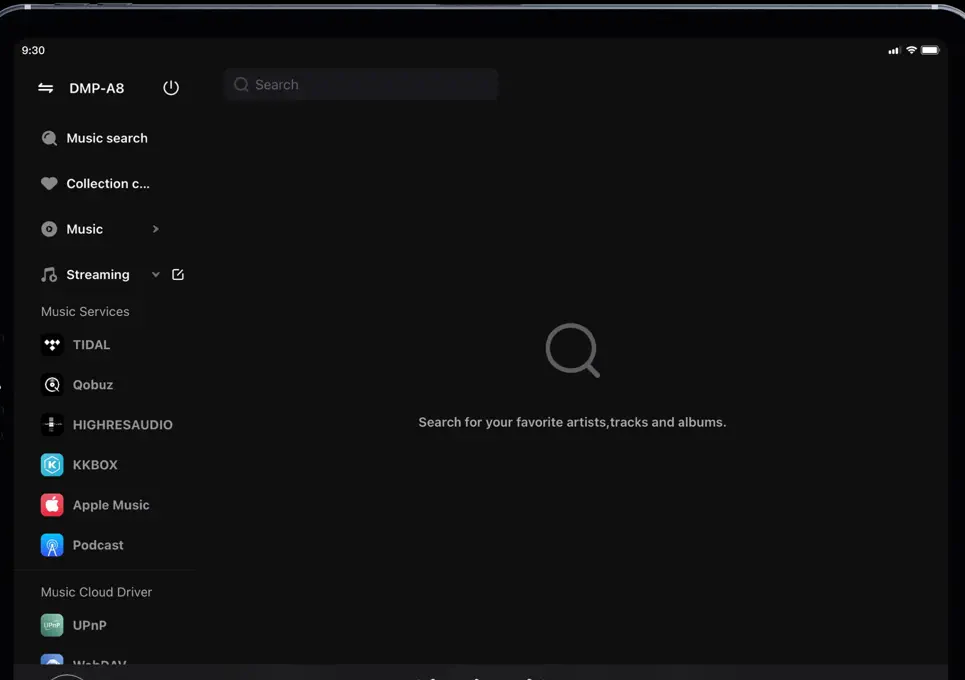
Tap TIDAL in the Music Services list. This is the actual Streaming screen in Eversolo Control.Screenshot: Eversolo Control App Store listing - 2
Sign in, choose music, and play
Enter the TIDAL email and password from your AudiophileStream dashboard. Return to Streaming, open TIDAL, choose an album or track, and tap Play.
Open your AudiophileStream account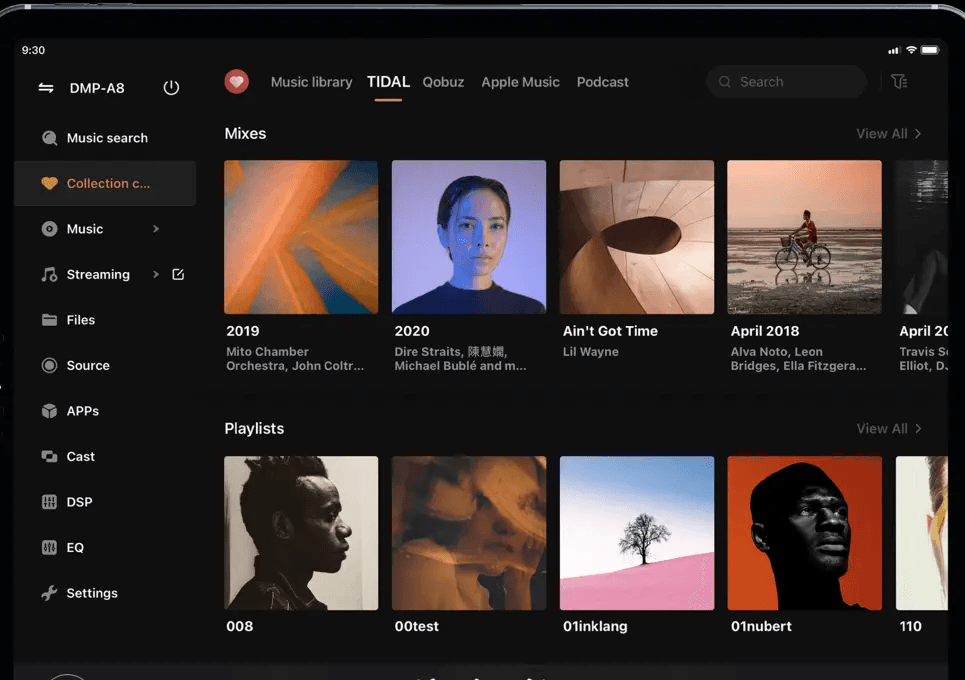
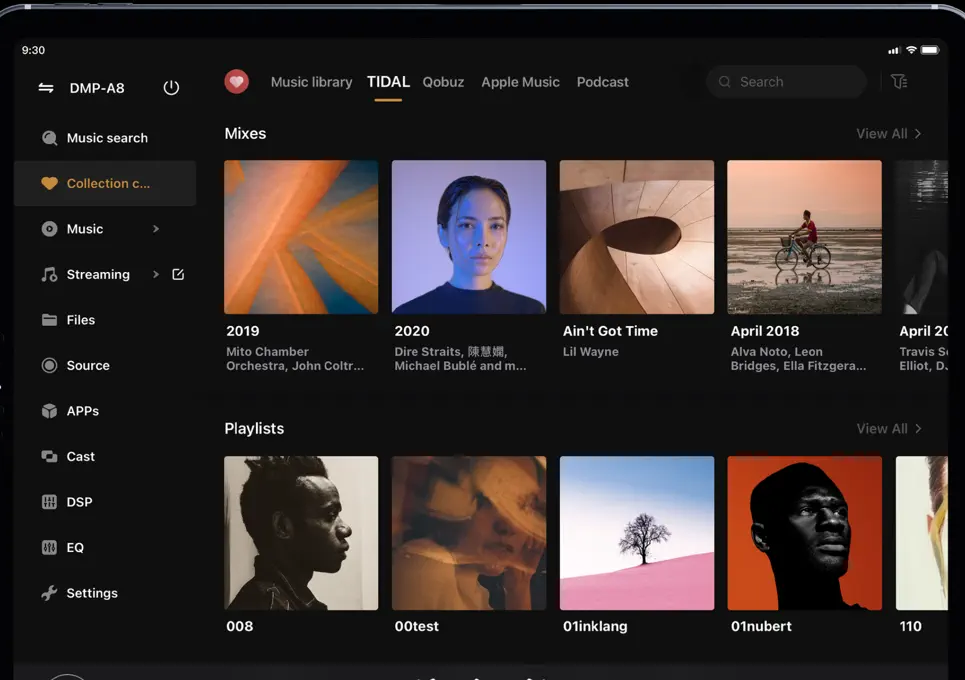
After sign-in, TIDAL opens in this library area. The official screen shown has TIDAL open and Qobuz available beside it.Screenshot: Eversolo Control App Store listing
If the streamer or service is missing
- 1
Confirm that the phone and Eversolo are on the same home network, then reopen Eversolo Control.
- 2
Update Eversolo Control and the streamer firmware if TIDAL is not listed under Music Services.
- 3
If sign-in fails, turn off VPN on the phone and enter the supplied account details again.
Downloads and official help
Open the exact resources referenced in this guide.