
Streamers and Hi-Fi
TIDAL on HEOS
Add the service in HEOS and play through a compatible Denon, Marantz, or HEOS speaker.
Play TIDAL through HEOS
The phone and HEOS device must be on the same home network. Update the HEOS app and device firmware before starting.
- 1
Select your HEOS device in HEOS
Open HEOS, tap Rooms, then tap the HEOS device receiver, player, or speaker you want to hear. Its row turns dark when selected.
Open the HEOS app page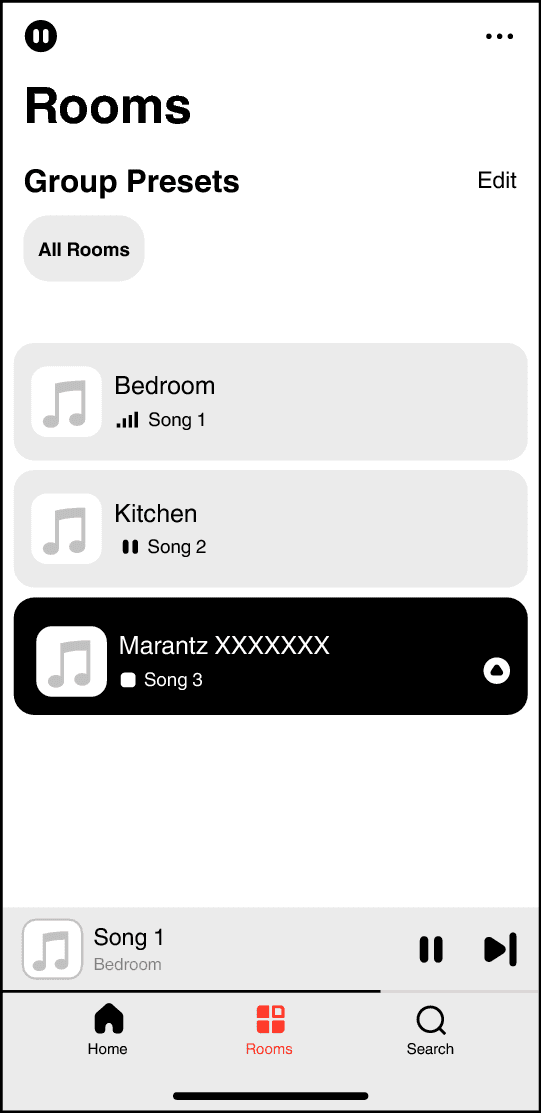
Tap the HEOS device room in HEOS before choosing music. This is the shared HEOS controller used by compatible Denon and Marantz products.Screenshot: Marantz AV 30 HEOS manual - 2
Add TIDAL under Music Services
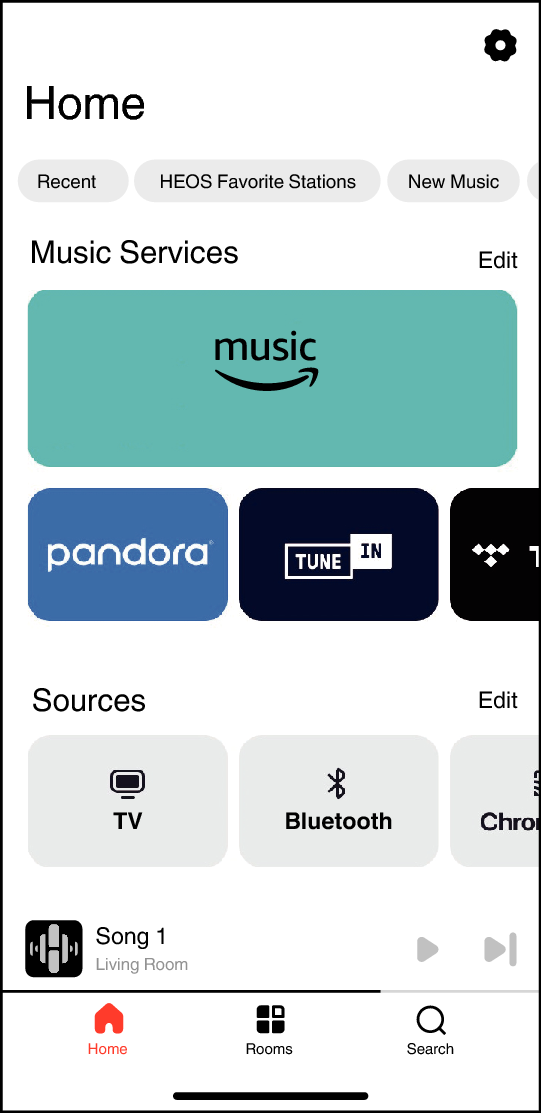
Tap Home. Under Music Services, tap Edit if TIDAL is not already visible, add it, and complete sign-in with the TIDAL credentials from your AudiophileStream dashboard.
Open your AudiophileStream account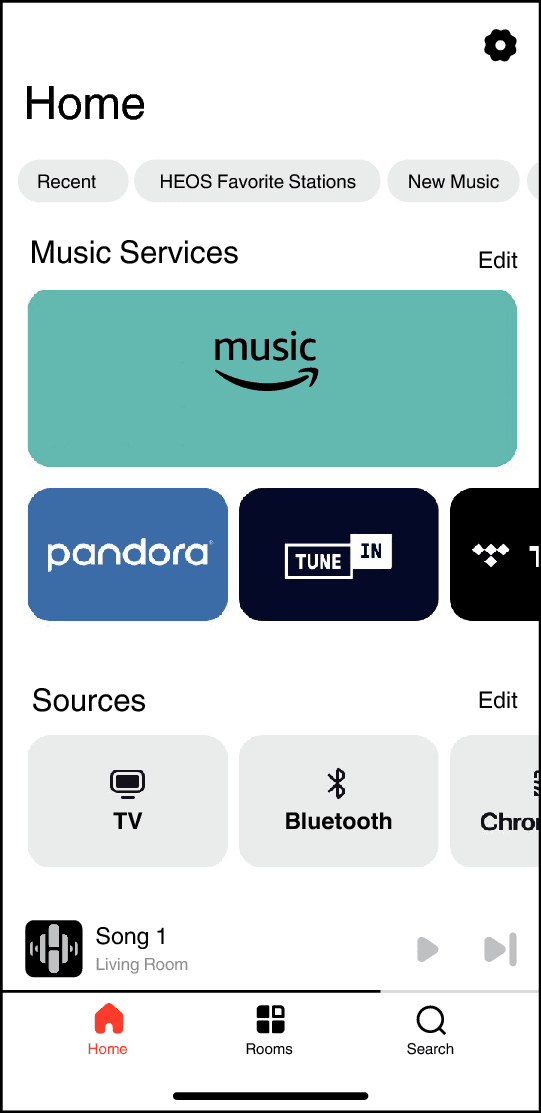
Use the Music Services row on Home to add or open TIDAL.Screenshot: Marantz AV 30 HEOS manual - 3
Choose music and confirm playback
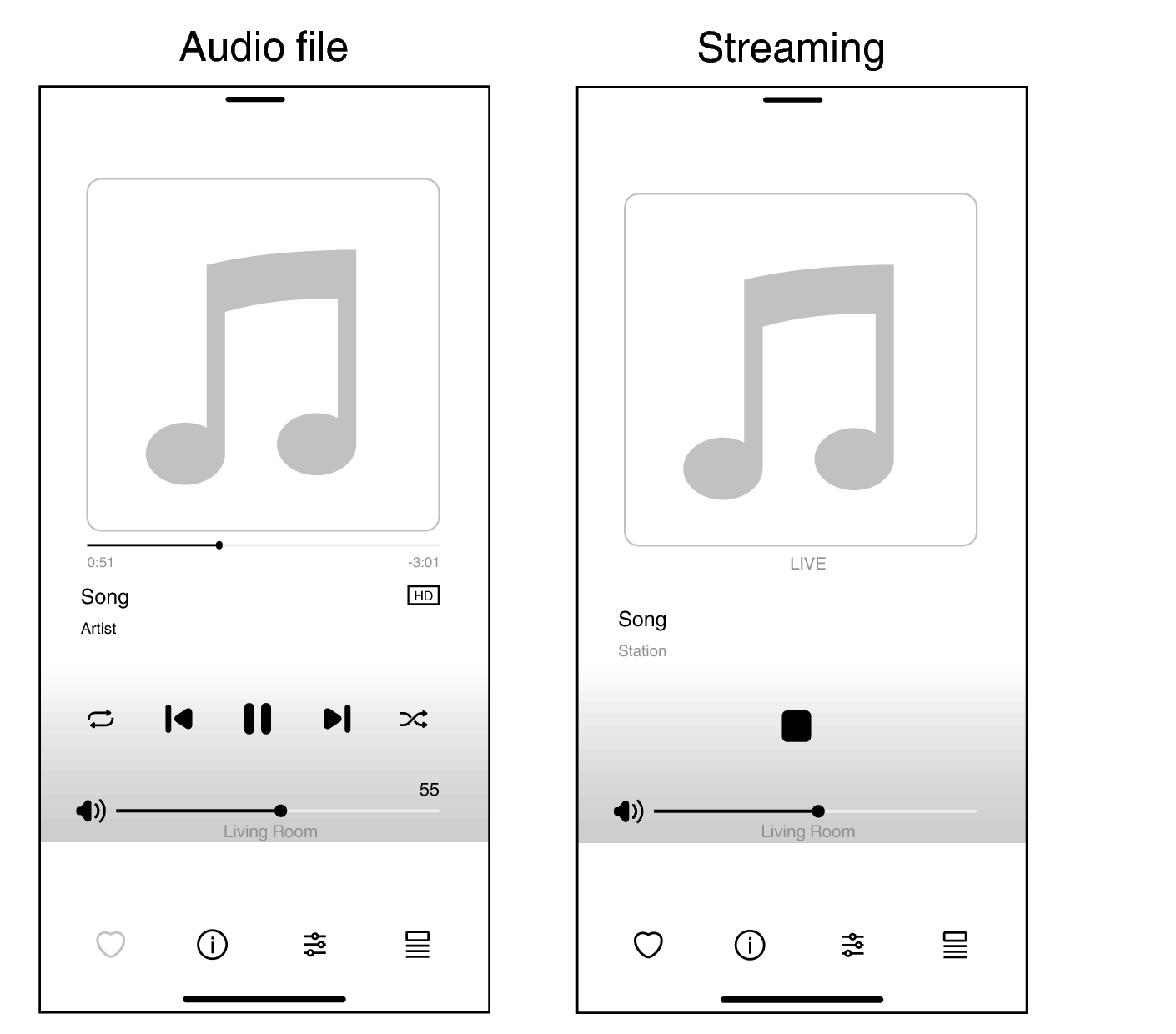
Open TIDAL from Home, choose an album or track, and tap Play. HEOS changes to Now Playing and shows the selected HEOS device room at the bottom.
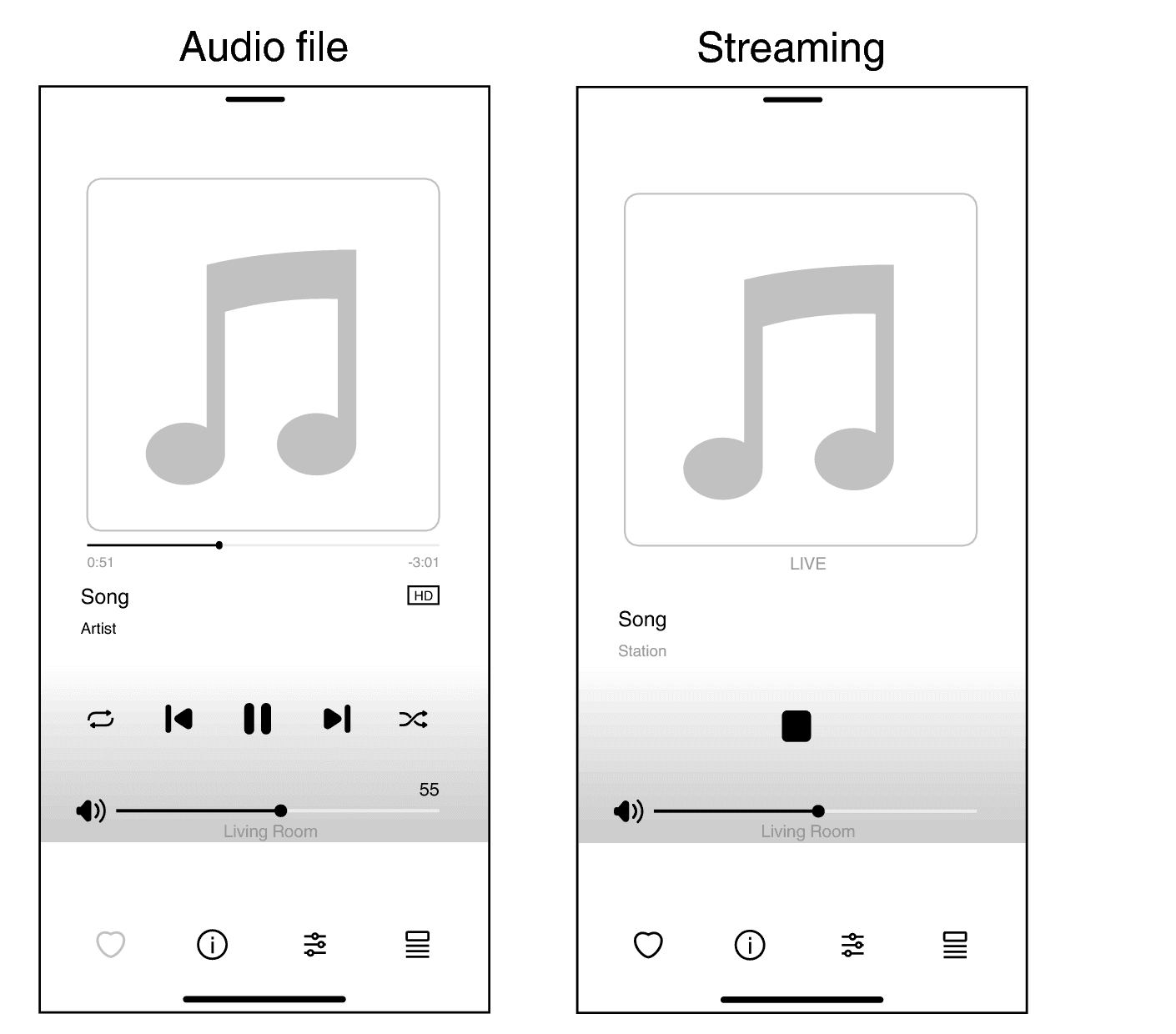
Playback controls and the selected room appear at the bottom of the HEOS Now Playing screen.Screenshot: Marantz AV 30 HEOS manual
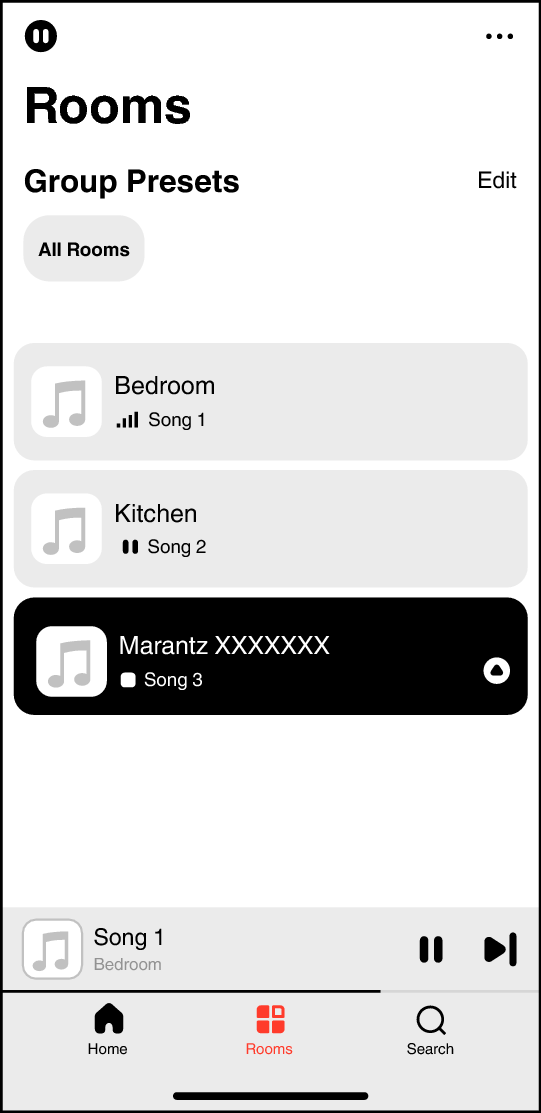
If the HEOS device or service is missing
- 1
Confirm that the HEOS device has HEOS Built-in and is already connected to the same router as the phone.
- 2
Update both HEOS and the device firmware. TIDAL availability can depend on the model, firmware, and region.
- 3
Restart the device and phone, reopen HEOS, select the room again, and retry the service sign-in.
Downloads and official help
Open the exact resources referenced in this guide.