
Streamers and Hi-Fi
TIDAL on Yamaha MusicCast
Select your Yamaha room in MusicCast, open the service source, sign in, and play.
Play TIDAL through Yamaha MusicCast
Connect the phone and Yamaha MusicCast product to the same home network. The product must already be registered as a room in MusicCast Controller.
- 1
Select the Yamaha room
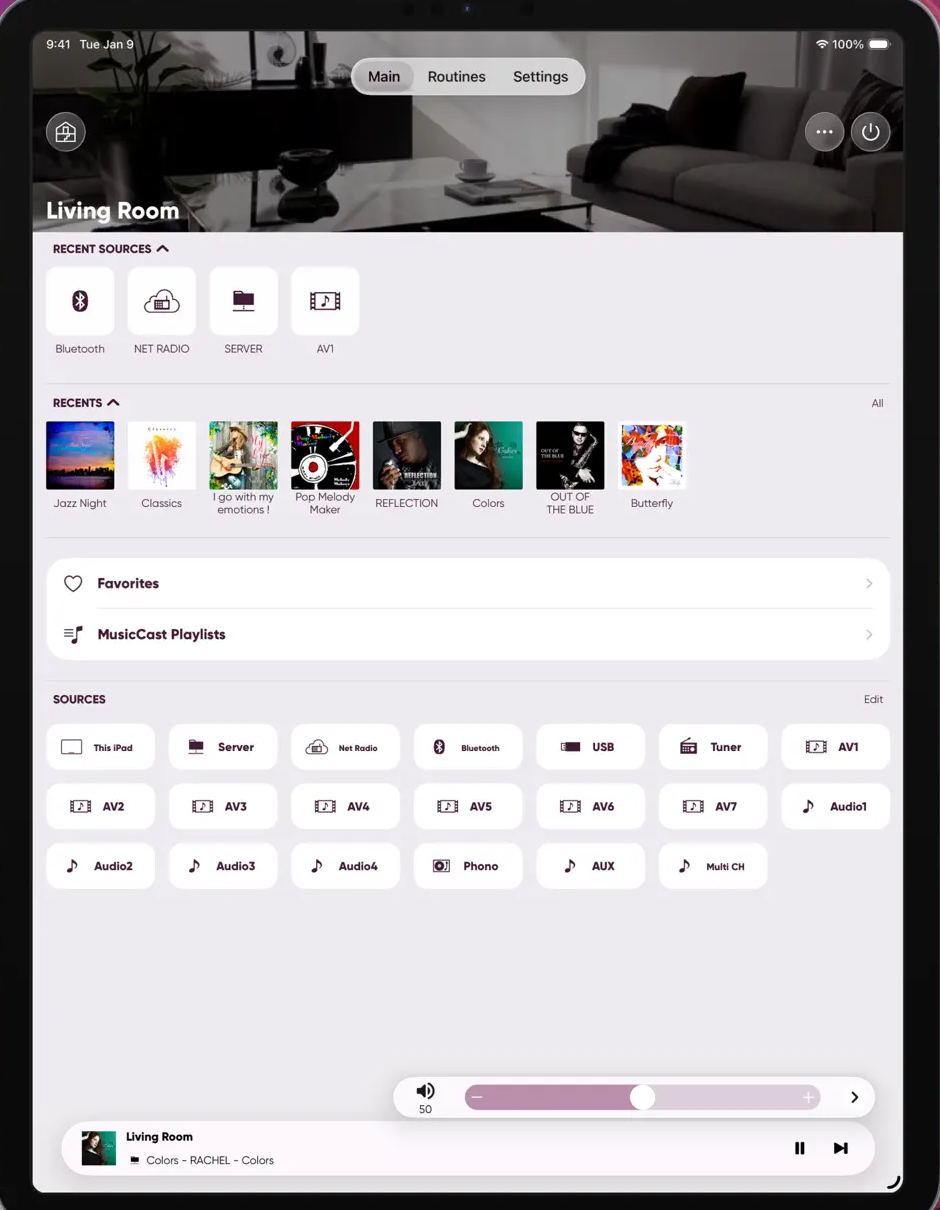
Open MusicCast Controller and tap the room containing your Yamaha receiver, amplifier, or speaker. The room name appears at the top of its main screen.
Open the MusicCast page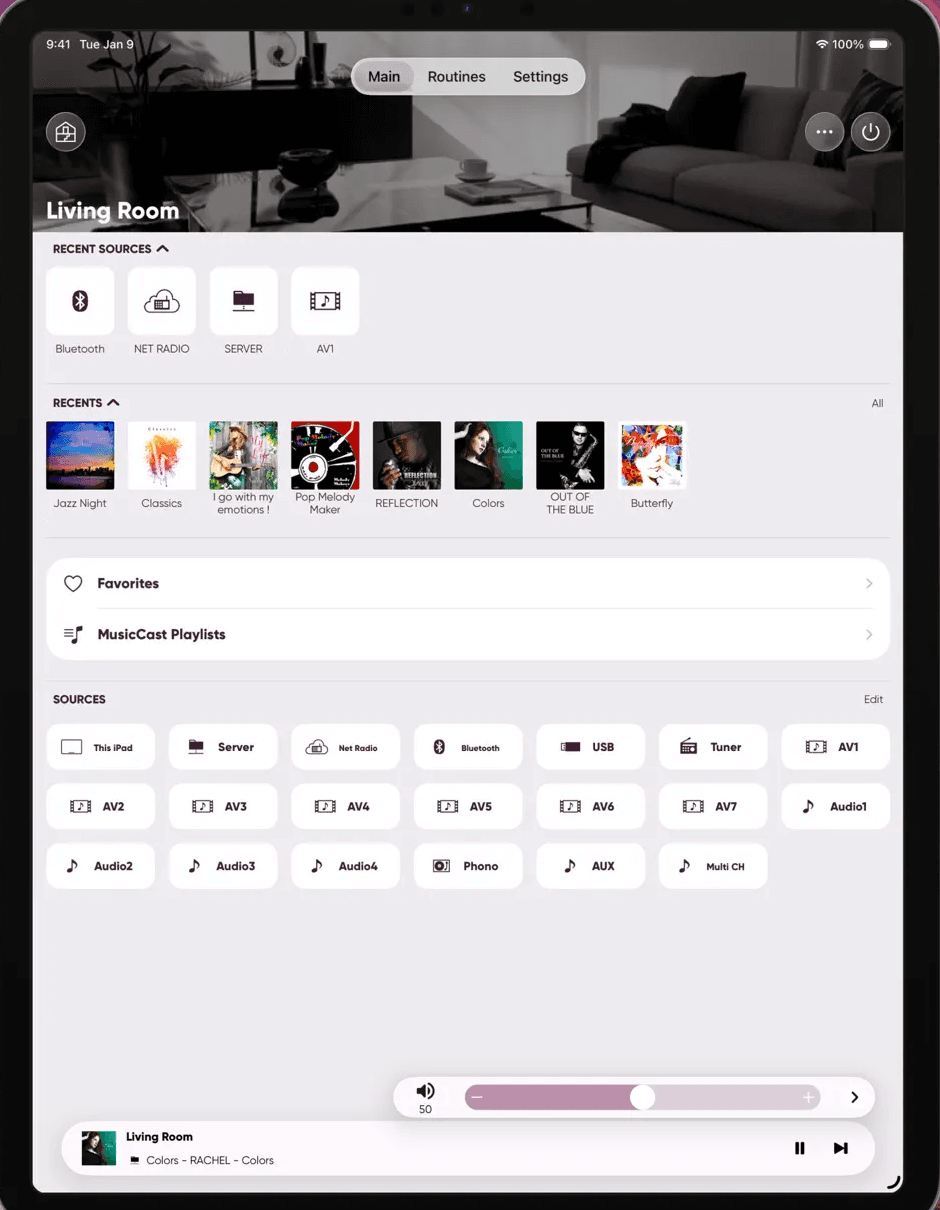
Confirm that the correct Yamaha room is shown at the top before choosing a source.Screenshot: MusicCast Controller App Store listing - 2
Choose TIDAL from Sources and sign in
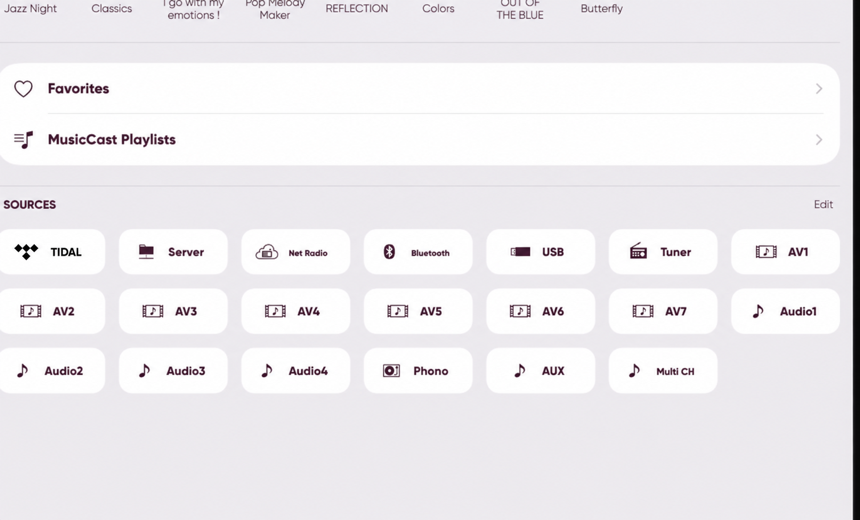
Scroll to Sources and tap TIDAL. Follow the on-screen sign-in, then enter the TIDAL account details from your AudiophileStream dashboard. Choose a track and tap Play.
Open your AudiophileStream account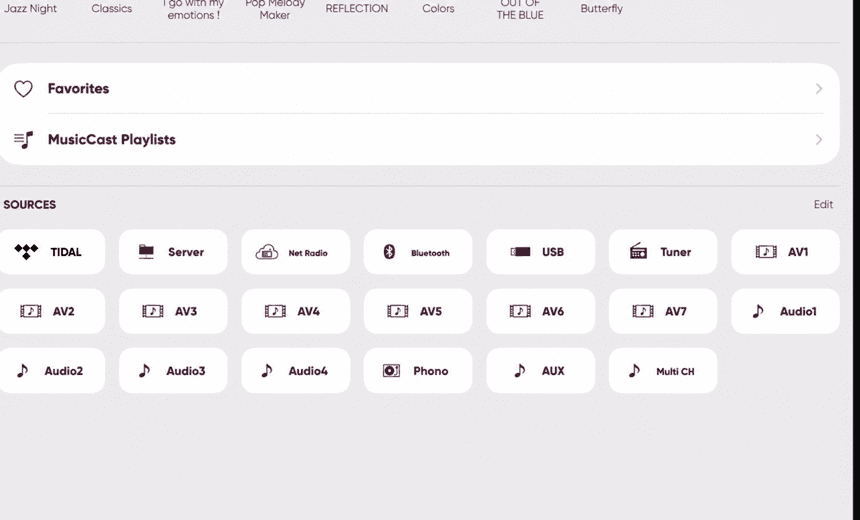
Tap TIDAL in Sources. This image uses Yamaha's real MusicCast Sources screen with the TIDAL tile added to show the exact choice.Screenshot: MusicCast Controller App Store listing
If the Yamaha room or service is missing
- 1
Confirm that the phone and Yamaha product are on the same router. Guest Wi-Fi can prevent room discovery.
- 2
Update MusicCast Controller and the Yamaha firmware, then reopen the room and check Sources again for TIDAL.
- 3
If sign-in fails, turn off VPN on the phone and enter the supplied account details again.
Downloads and official help
Open the exact resources referenced in this guide.